How to Convert Images to WebP Format for Faster Websites
WebP images load 30% faster than JPEG. Learn how to convert your images to WebP format and implement them correctly on your website.
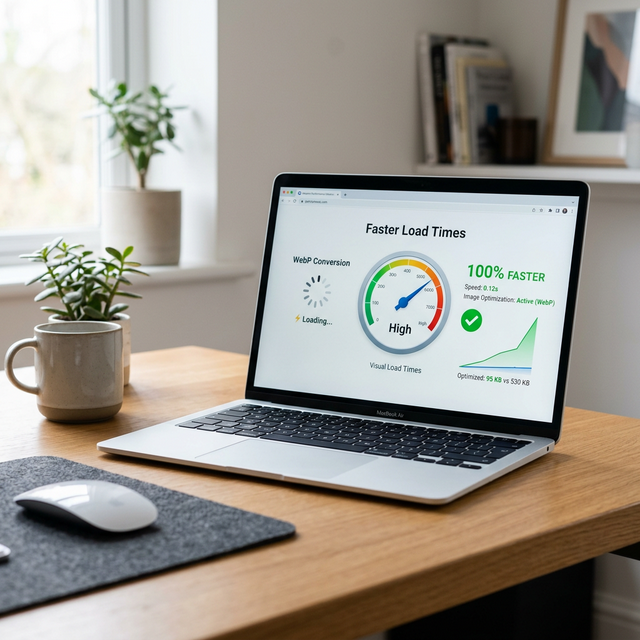
WebP is a modern image format that loads approximately 30 percent faster than JPEG while maintaining the same visual quality. Developed by Google and now supported by over 97 percent of web browsers, WebP has become the recommended format for web images in 2026. Despite its clear advantages and near-universal browser support, the majority of websites still serve JPEG and PNG images by default, missing out on significant performance gains that require no redesign or architectural changes — just a format conversion. Converting your existing JPEG and PNG images to WebP is one of the most impactful optimizations you can make for website performance — delivering faster page loads, improved Core Web Vitals scores, and reduced bandwidth costs with minimal effort. This guide walks you through the complete WebP conversion process, from understanding the format to implementing it correctly on your website with proper fallback for older browsers.
What Is WebP and Why Did Google Create It?
WebP is an image format created by Google in 2010 as part of their broader effort to make the web faster. Google's motivation was straightforward: images account for the largest share of data transferred on the web, and existing formats (JPEG from 1992, PNG from 1996) use compression algorithms from the 1990s that do not take advantage of modern computational capabilities.
WebP uses a compression technique derived from the VP8 video codec (used in WebM video), which was specifically designed for efficient visual data compression. By adapting video compression technology to still images, WebP achieves better compression ratios than formats designed three decades earlier. The format supports both lossy compression (like JPEG) and lossless compression (like PNG), as well as transparency (alpha channel) and animation — making it a single format that can replace JPEG, PNG, and GIF in most web contexts.
Google's internal testing on a corpus of one million randomly selected images from the web demonstrated that WebP lossy images are 25-34 percent smaller than JPEG images at equivalent SSIM (Structural Similarity Index) quality, and WebP lossless images are 26 percent smaller than PNG images. These are significant reductions that translate directly into faster page loads for every visitor to your website.
Real-World Speed Impact — WebP vs JPEG on Page Load
The theoretical 25-34 percent size reduction translates to measurable real-world speed improvements. Consider a typical blog page with a hero image, three in-content photographs, and two thumbnail images — six images totaling approximately 1.2 MB in JPEG format.
Converting all six images to WebP at equivalent quality reduces the total to approximately 800 KB — saving 400 KB of transfer. On a 4G mobile connection (typical throughput 10-15 Mbps), this saves approximately 0.3 seconds of load time. That number sounds small in isolation, but Google's research shows that every 100ms of additional load time reduces conversion rates by up to 7 percent. The 0.3-second improvement from WebP conversion alone can measurably increase user engagement.
The impact multiplies on slower connections. On a 3G connection (1-2 Mbps, common in rural areas and developing regions), 400 KB of savings reduces load time by 1.5 to 3 seconds — a dramatic improvement that can mean the difference between a visitor seeing your content or abandon the page before it renders. For global audiences, WebP adoption directly improves accessibility for visitors on constrained connections.
Core Web Vitals specifically benefit from smaller image files. The Largest Contentful Paint (LCP) metric — which Google uses as a ranking signal — measures when the largest visible element (often a hero image) finishes rendering. A WebP hero image that is 33 percent smaller than its JPEG equivalent renders 33 percent faster, directly improving your LCP score and potentially your search ranking.
How to Convert Images to WebP Using FileCast (Client-Side, Private)
FileCast's Image to WebP converter processes your images entirely in your browser using client-side JavaScript. Your images never leave your device — no upload to external servers, no privacy concerns, no waiting for server-side processing. Here is how to use it.
Step 1: Open the FileCast Image Converter tool in any modern browser. The tool loads a JavaScript-based image processing engine that runs locally on your device.
Step 2: Drag your JPEG or PNG image onto the upload zone, or click to browse your files. The tool accepts images of any resolution and file size, though processing time increases for very large files (20+ MB).
Step 3: Select "WebP" as the output format. Adjust the quality slider to your desired setting (80 is recommended for most content — see the quality settings section below). The tool shows a real-time preview of the output quality and the estimated file size.
Step 4: Click "Convert" and download the resulting WebP file. The conversion typically completes in 1-3 seconds for standard web images. The downloaded file is ready for immediate use on your website.
Implementing WebP on Your Website — The Picture Element
The HTML <picture> element is the recommended way to serve WebP
images with automatic fallback for browsers that do not support the format. This approach ensures every
visitor sees an image, regardless of their browser capabilities.
The browser reads the <source> elements in order. If it supports
WebP, it loads the WebP file. If not, it falls back to the JPEG. The <img> element serves
as the final fallback for browsers that do not support the <picture> element at all
(extremely rare in 2026, but good practice for resilience).
💡 Key Insight
The <picture> element gives you WebP with automatic JPEG fallback. The browser selects
the first supported format in the list, so always place WebP (the smaller format) before JPEG. This
approach requires maintaining both file versions on your server but ensures every visitor gets the
optimal experience for their browser. No JavaScript is needed — the browser handles format
selection natively.
WebP Quality Settings — What Number Should You Use?
WebP quality is specified as a number from 0 to 100, where 100 represents the highest quality (and largest file size). The relationship between quality setting and visual output is not linear — the difference between quality 90 and 100 is barely visible, but the file size difference is substantial.
Quality 80 (recommended for most content). This is the sweet spot for web images. At quality 80, WebP produces files that are visually indistinguishable from the JPEG original in normal viewing conditions. A 400 KB JPEG at quality 85 converts to approximately 260 KB WebP at quality 80 — a 35 percent reduction with no perceptible quality loss.
Quality 85-90 (for photography portfolios). If your images are the primary product (photography portfolio, art gallery, professional showcase), use quality 85-90 for maximum visual fidelity. The file size increase over quality 80 is modest (10-20%), and the preserved detail matters when visitors examine images closely.
Quality 60-75 (for thumbnails and previews). Small images displayed at 200-400 pixels wide tolerate lower quality settings because viewers cannot distinguish compression artifacts at small display sizes. Quality 65-70 produces excellent thumbnails at dramatically reduced file sizes. For gallery pages displaying 20 or more thumbnails simultaneously, keeping each thumbnail under 15 KB at quality 65 ensures the entire grid loads in under two seconds even on mobile connections, providing a noticeably faster browsing experience for your visitors.
✅ Pro Tip
Quality setting 80 is the sweet spot for most web images — delivering great visual quality with a small file size. The difference between quality 80 and quality 95 is nearly invisible to the human eye at normal viewing distance, but the file size at quality 95 can be 40-60% larger. Start with quality 80 and only increase if you can visually identify quality issues in your specific images. For batch conversion of entire image libraries, quality 80 is the safest default.
When to Keep JPEG or PNG Instead of WebP
Despite WebP's advantages, there are legitimate scenarios where keeping JPEG or PNG is the better choice. Understanding these exceptions prevents compatibility problems and workflow issues.
Email newsletters. Email client WebP support remains inconsistent. Outlook for Windows, Yahoo Mail, and many corporate email systems do not render WebP images. For email campaigns, JPEG is the only format guaranteed to display correctly across all clients. Converting to WebP for email will result in broken image icons for a significant portion of your recipients.
Print workflows. If images serve both web and print purposes, maintain JPEG or TIFF originals. WebP is optimized for screen display in RGB color mode and is not suitable for CMYK print production. Converting a print-quality image to WebP and back introduces unnecessary quality loss in the round-trip conversion.
Legacy CMS and tools. Some older content management systems, e-commerce platforms, and marketing tools do not accept WebP uploads. Before batch-converting your entire image library, verify that your CMS, CDN, and downstream tools support WebP throughout the pipeline.
PNG with transparency in specific contexts. While WebP supports transparency, some design tools and workflows expect PNG files specifically. If your images are consumed by other systems (automated design tools, video editing software, template engines), verify WebP transparency support before converting from PNG.
WebP in WordPress — How It Works Automatically
WordPress has supported WebP natively since version 5.8, released in 2021. Uploading a WebP image to the WordPress Media Library works identically to uploading a JPEG or PNG — WordPress generates all necessary thumbnail sizes and serves the images through its standard template functions.
Automatic conversion plugins. Several WordPress plugins convert existing JPEG/PNG images to WebP automatically. ShortPixel, Imagify, and EWWW Image Optimizer all offer free tiers that convert images during upload and serve WebP to browsers that support it, with JPEG/PNG fallback for those that do not. This approach requires zero changes to your theme templates — the plugin handles format negotiation transparently.
Server-side configuration. For WordPress sites on Apache servers, WebP
serving can be configured via .htaccess rewrite rules that check for WebP browser support (via the Accept
header) and serve the WebP version if both the WebP file exists and the browser supports it. Nginx
configuration achieves the same result with a try_files directive. This server-side approach is
the most performant because it operates at the web server level without involving PHP or plugin code.
CDN-level conversion. Major CDN providers (Cloudflare, Fastly, AWS CloudFront) offer automatic image format negotiation as a feature. When enabled, the CDN detects the visitor's browser capabilities and converts images to WebP on the fly, caching the converted version for subsequent requests. This approach requires no changes to your WordPress installation at all — the CDN handles everything between your server and the visitor's browser.
Measuring the Impact of WebP Conversion
After converting your images to WebP, measuring the actual performance impact validates that the effort delivered meaningful results and helps identify any remaining optimization opportunities.
Google PageSpeed Insights provides both field data (real user measurements from Chrome User Experience Report) and lab data (simulated page loads). Run your pages through PageSpeed Insights before and after WebP conversion to quantify the improvement. Focus on the Largest Contentful Paint (LCP) metric, which directly measures how quickly your largest visual element renders. A successful WebP migration typically improves LCP by 0.3-1.0 seconds, depending on the number and size of images on the page.
Chrome DevTools Network panel shows the exact file size and transfer time for every image on your page. Open DevTools (F12), navigate to the Network tab, filter by "Img", and reload the page. Compare the total transfer size before and after conversion. You should see a 25-35 percent reduction in total image bandwidth. If specific images show smaller reductions, they may benefit from additional compression or resizing.
WebPageTest (webpagetest.org) provides detailed waterfall charts showing exactly when each image starts and finishes loading. This level of detail helps identify whether specific images are bottlenecking your page load and whether WebP conversion has improved each image's individual load time.
Ongoing monitoring. Image optimization is not a one-time task. As you publish new content and add new images, each addition should follow your WebP workflow. Set up automated performance monitoring using Google Search Console's Core Web Vitals report, which tracks LCP over time and alerts you if performance degrades. A consistent WebP conversion workflow prevents performance regression as your site grows.
Beyond the technical metrics, consider the cumulative impact on your hosting infrastructure. A website serving 100,000 page views per month with 1 MB of JPEG images per page transfers 100 GB of image data monthly. Converting to WebP reduces this to approximately 67 GB — saving 33 GB of bandwidth per month. For sites on metered hosting plans, this translates directly to lower hosting costs. For sites on CDN plans with bandwidth pricing, the savings compound further as traffic scales.
Frequently Asked Questions
Q: Can I convert animated GIFs to WebP?
A: Yes. WebP supports animation and produces animated files that are significantly smaller than equivalent GIF files — typically 50-70% smaller. Google's cwebp tool and online converters like FileCast can convert animated GIFs to animated WebP. The only consideration is that some browsers display animated WebP with slightly different timing than the original GIF; preview the result before publishing.
Q: Does WebP support CMYK color mode?
A: No. WebP supports RGB and RGBA (RGB with alpha transparency) color modes only. CMYK images must be converted to RGB before WebP encoding. This is acceptable for web use since all monitors display in RGB, but means WebP is not suitable as an archival format for print-destined images.
Q: What is the maximum image size WebP supports?
A: WebP supports images up to 16383x16383 pixels. This is sufficient for virtually all web use cases, including ultra-high-resolution photography and large infographics. If your image exceeds these dimensions, it must be resized before conversion — though images this large should almost certainly be resized anyway for web delivery.
Q: Is there a quality loss when converting JPEG to WebP?
A: Converting a lossy JPEG to lossy WebP involves a generation of re-compression, which theoretically introduces additional quality loss. However, at quality 80+, the additional degradation is imperceptible for most images. For maximum quality, convert from the original uncompressed source (TIFF, RAW, or original PNG) rather than from an already-compressed JPEG when possible.
Q: How much smaller are WebP files compared to JPEG?
A: At equivalent visual quality (measured by SSIM), WebP lossy files are 25-34% smaller than JPEG. The exact reduction varies depending on image content — photographs with detailed textures see reductions closer to 25%, while images with smoother gradients and solid areas may achieve reductions closer to 40%. Lossless WebP is approximately 26% smaller than equivalent PNG files.
Akbarak Engineering
Lead Technical Architecture Team
Dedicated to building high-performance web utilities and sharing in-depth knowledge on digital optimization, security, and next-generation web platforms. We simplify complex technologies for millions of users globally.