How to Host a PDF Online and Get a Shareable Link
Need to share a PDF without email? Learn how to host any PDF online and get a direct download link in seconds. Free, no account required.
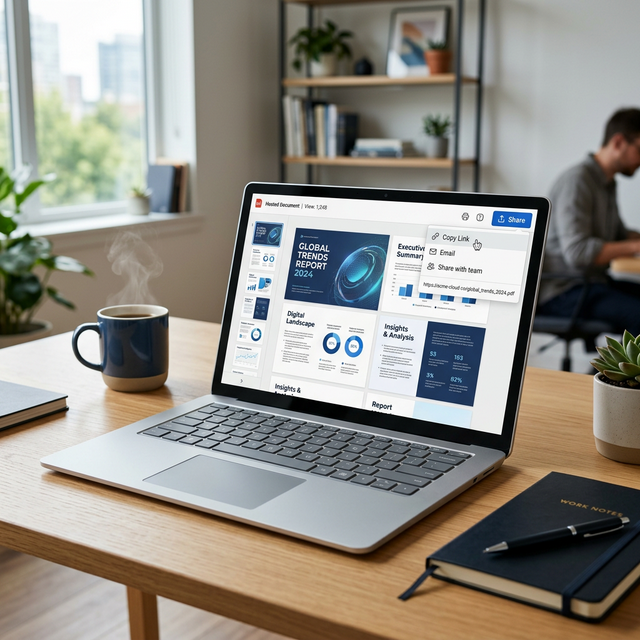
PDFs remain the universal format for documents that need to look identical on every device — contracts, invoices, research papers, resumes, product brochures, and technical manuals. But sharing them creates a recurring challenge. Email attachment limits block large PDFs. Messaging apps compress or refuse them. USB drives require physical proximity. The solution is hosting your PDF online and sharing a download link that works for anyone, on any device, through any communication channel. This guide walks you through every practical method for hosting PDFs online, from the fastest no-account tools to Google Drive links, and explains how to embed hosted PDFs directly into your website.
Why Sharing PDFs as Links Is Better Than Email Attachments
The traditional approach to sharing PDFs — attaching them directly to emails — creates several problems that a simple download link eliminates entirely.
No size restrictions. Email providers cap attachments at 25 MB (Gmail, Outlook) or even lower for corporate accounts. A multi-page design portfolio, a detailed technical specification, or a high-resolution print-ready brochure can easily exceed these limits. PDF hosting services accept much larger files and deliver them via CDN infrastructure designed for efficient file transfer.
One link serves unlimited recipients. When you email a PDF attachment to ten people, the email system creates ten copies of the file across ten separate mailboxes. When you share a hosted link, a single copy exists on the server, and all ten recipients download from that one source. This is faster to send, consumes no recipient storage, and puts zero burden on their email quotas.
Update without resending. If you discover a typo or need to update pricing information in a shared PDF, an email attachment cannot be recalled. With a hosted link (particularly through cloud storage), you can replace the file, and the same URL serves the updated version automatically. Recipients always get the latest version without you sending a correction email.
Professional presentation. A clean download link embedded in a message or website looks professional and intentional. An email thread with a large attachment looks cumbersome and can trigger spam filters or corporate email security gateways. For client-facing communications, hosted links project competence and technical fluency.
Cross-platform compatibility. A download link works identically on desktops, laptops, tablets, and smartphones running any operating system. Email attachments sometimes fail to render correctly on mobile devices, get quarantined by security software, or require specific apps to open depending on the recipient's email client configuration.
Step-by-Step — How to Get a PDF Download Link on Akhbarq
Akhbarq's File to URL tool converts any PDF into a shareable download link in under ten seconds. Here is the exact process, step by step.
Step 1: Open the File to URL tool. Navigate to the Akhbarq File to URL page in any web browser. No account creation, login, or software installation is required. The tool works directly in your browser on any device.
Step 2: Upload your PDF. Click the upload area or drag your PDF file directly from your file manager into the upload zone. The file begins uploading immediately. You will see a progress indicator showing the upload status and estimated time remaining for larger files.
Step 3: Wait for processing. Once the upload completes, Akhbarq processes the file and generates a unique URL on CDN-backed infrastructure. For most PDFs (under 10 MB), this takes 2-5 seconds. Larger files may take slightly longer depending on your internet connection speed.
Step 4: Copy your link. The tool displays your permanent download URL with a copy button. Click the button to copy the URL to your clipboard. This URL is a direct link — anyone who clicks it will download the PDF immediately, without navigating through any intermediate pages or being asked to create an account.
Step 5: Share the link. Paste the copied URL into any communication channel: email, Slack, WhatsApp, Teams, SMS, a project management tool, or directly into a webpage's HTML. The recipient clicks the link, their browser downloads the PDF, and they open it with their device's default PDF viewer.
✅ Pro Tip
Compress your PDF before uploading for faster sharing. Tools like Smallpdf, iLovePDF, or Adobe Acrobat's "Reduce File Size" option can reduce a 15 MB PDF to 3-5 MB without noticeable quality loss in most documents. Smaller files upload faster, download faster for the recipient, and consume less storage on the hosting platform. This is especially important for PDFs with embedded high-resolution images that were not optimized for screen viewing.
Other Ways to Host PDFs Online for Free
While file-to-URL tools offer the fastest path, several other platforms can host PDFs with different trade-offs in terms of features, permanence, and complexity.
Dropbox. Upload a PDF to your Dropbox account, right-click, and select "Copy link." Dropbox generates a shareable URL that allows anyone to preview the PDF in their browser and download it. The link remains active as long as the file exists in your Dropbox. Free accounts include 2 GB of storage, sufficient for hundreds of typical PDFs.
OneDrive. Microsoft's cloud storage works similarly. Upload the PDF, click "Share," configure permissions (view-only recommended for documents you do not want edited), and copy the link. OneDrive provides 5 GB free and integrates tightly with Microsoft 365, making it a natural choice for users already in the Microsoft ecosystem.
Internet Archive. The Internet Archive (archive.org) accepts PDF uploads for permanent, public hosting at no cost. Unlike commercial services, the Internet Archive is a nonprofit digital library that explicitly preserves content indefinitely. This makes it ideal for academic papers, historical documents, public reports, and any PDF that should remain permanently accessible to the public.
GitHub Gist/Repositories. Developers can commit PDF files to GitHub repositories or gists, generating permanent URLs through GitHub's CDN. While unconventional for non-developers, this approach provides reliable, free hosting with version control built in — every change to the PDF is tracked and previous versions remain accessible.
Google Drive PDF Links — How They Work
Google Drive is the most commonly used platform for PDF sharing, largely because most people already have a Google account with 15 GB of free storage. Understanding how Google Drive PDF links work at a technical level helps you use them more effectively.
The default sharing link. When you right-click a PDF in Google Drive
and select "Get link," Google generates a URL in the format
https://drive.google.com/file/d/FILE_ID/view. This link opens the PDF in Google Drive's
browser-based viewer, which renders the document inline with navigation controls, zoom, and a download
button.
Direct download link. To create a link that downloads the PDF directly
(bypassing the viewer), modify the URL by replacing /view with /export?format=pdf
or by adding &export=download to the end. This is useful when you want the recipient to
save the file immediately rather than viewing it in the browser first.
Access permissions. Google Drive offers three sharing levels: "Restricted" (only specified users), "Anyone with the link" (no login required but the URL must be known), and "Anyone on the internet" (publicly discoverable through search). For most PDF sharing scenarios, "Anyone with the link" provides the right balance of accessibility and privacy — the PDF is accessible to anyone you share the URL with, but it does not appear in Google search results.
Viewer analytics. Google Drive does not provide view or download analytics for individual shared files on free accounts. If you need to track who accessed your PDF and when, consider using Google Workspace (paid) or a dedicated file-sharing service that includes download tracking as a feature.
When PDF Hosting Links Expire — What to Know
Not all PDF hosting links last forever. Understanding expiration policies prevents the frustrating experience of sharing a link that stops working days or weeks later, breaking references in emails, presentations, and publications.
Permanent links. Google Drive, Dropbox, and OneDrive maintain links as long as the file exists in your storage account and you do not revoke sharing. Akhbarq generates permanent CDN-backed URLs. The Internet Archive preserves content explicitly forever. For any PDF you embed in published content (blog posts, documentation, course material), choose a service with permanent link generation.
Time-limited links. Some file-sharing services (WeTransfer, transfer.sh) automatically delete files after a set period — typically 7-14 days. These services are designed for one-time delivery, not permanent hosting. If you share a time-limited link in a published article, it will break within days, leading to a poor user experience and potential SEO penalties from broken links.
Activity-based expiration. Certain services delete files after a period of zero downloads (no one accessing the file). The threshold varies from 30 days to 180 days depending on the service. This policy means rarely accessed PDFs can silently disappear even on otherwise reliable platforms. For critical documents, verify the specific retention policy of your hosting service and set calendar reminders to re-access the file periodically if needed.
How to Embed a Hosted PDF on Your Website
Once your PDF has a publicly accessible URL, you can embed it directly into any webpage, allowing visitors to read the document without downloading it. This is particularly useful for terms of service documents, product catalogs, research papers, and instructional guides.
The HTML iframe method. The simplest approach uses an
<iframe> element that loads the PDF directly from its hosted URL. Most modern browsers
include built-in PDF rendering within iframes, so the document displays inline with scroll and zoom
capabilities.
Google Drive embed. For PDFs hosted on Google Drive, use the embed
format URL: https://drive.google.com/file/d/FILE_ID/preview. This URL renders the PDF in
Google's viewer within an iframe, including page navigation and zoom controls. The preview URL works even
when the file's sharing setting is "Anyone with the link." This approach is highly reliable because Google's
infrastructure handles the rendering and caching.
Responsive considerations. On mobile devices, iframes containing PDFs can behave inconsistently. Some mobile browsers render the PDF inline, while others prompt the user to download the file. For the best mobile experience, provide both an embedded viewer and a prominent download link below the iframe as a fallback. This ensures every visitor can access the content regardless of their browser's PDF rendering capabilities.
Performance impact. Embedded PDFs add significant weight to your page. A 5 MB PDF embedded via iframe requires that data to download before the document becomes visible. For pages where initial load speed matters (landing pages, high-traffic blog posts), consider using a thumbnail preview image instead, linking to the full PDF for download. This keeps your page speed from being penalized while still making the document accessible.
💡 Key Insight
Use the HTML <iframe> tag to embed PDFs directly into your web pages. Set the
src attribute to your hosted PDF's URL, define a width of 100% for
responsiveness, and set a fixed height (typically 500-800 pixels). Always include a
download link below the iframe as a fallback for browsers that do not support inline PDF rendering.
Frequently Asked Questions
Q: Can I password-protect a hosted PDF?
A: PDF files support native password protection through Adobe Acrobat, Preview (macOS), and free tools like Smallpdf. Set a password on the PDF before uploading it to any hosting service. The recipient will need to enter the password when opening the downloaded file. This works regardless of which hosting service you use because the protection is embedded in the PDF file itself, not applied by the hosting platform.
Q: What is the maximum PDF file size I can host for free?
A: Limits vary by service. Google Drive handles PDFs up to 5 TB (limited by your storage quota of 15 GB free). Dropbox accepts files up to 2 GB on the free tier. File-to-URL services typically accept 10-100 MB. For very large PDFs (technical manuals with hundreds of pages), Google Drive or Dropbox are the most practical free options due to their higher file size allowances.
Q: Will search engines index my hosted PDF?
A: Google indexes publicly accessible PDFs and includes them in search results. If your PDF is hosted on Google Drive with "Anyone on the internet" access, it may appear in search. If you use "Anyone with the link" access, the PDF is not indexed because Google does not discover the URL. File-to-URL services typically do not submit URLs to search engines, so indexed discovery is unlikely unless you link to the PDF from a public webpage.
Q: Can I track how many people downloaded my PDF?
A: Most free hosting services do not provide download analytics. Google Drive shows "Last viewed" dates but not download counts on free accounts. For download tracking, consider using a URL shortener with analytics (like bit.ly) wrapped around your PDF download link. The shortener tracks clicks, giving you approximate download counts without requiring a paid hosting service.
Q: Is it better to host a PDF or convert it to a webpage?
A: It depends on the content type. For documents that need to maintain exact formatting (contracts, forms, print materials), PDF hosting preserves the layout perfectly. For content primarily read on screens (guides, blog posts, documentation), converting to a webpage provides better mobile readability, faster loading, and better SEO. Many organizations publish both versions — a hosted PDF for download and print, plus a webpage version for online reading.
Conclusion
Hosting a PDF online and sharing a download link is simpler and more effective than attaching files to emails. Whether you use Akhbarq for instant no-account uploading, Google Drive for integration with your existing workflow, or the Internet Archive for permanent public preservation, the result is the same: a single URL that gives anyone on any device instant access to your document.
Choose your hosting method based on three factors: how long the link needs to remain active, whether you need access control, and whether the PDF will be embedded on a webpage. For quick one-time shares, file-to-URL services provide the fastest path. For ongoing document management with version control, cloud storage platforms offer the most flexibility. And for permanent public access, the Internet Archive guarantees preservation without expiration dates or account requirements.
For professional workflows, consider establishing a standardized PDF sharing process. Compress your PDFs before uploading to reduce file sizes and improve download speeds for recipients. Keep a simple log of uploaded files alongside their hosted URLs, so you can quickly locate and share links when needed — or identify which files need re-uploading if a hosting service changes its policies. Test your hosted links periodically, especially for PDFs embedded in published articles or shared with long-term clients, to ensure they remain functional. Taking these preventive steps transforms PDF hosting from a reactive task into a reliable, repeatable part of your digital workflow.

Akhbarq Engineering
Lead Technical Architecture Team
Dedicated to building high-performance web utilities and sharing in-depth knowledge on digital optimization, security, and next-generation web platforms. We simplify complex technologies for millions of users globally.