Best Image Formats for the Web — JPG vs PNG vs WebP Compared
JPG, PNG, or WebP — which format is right for your website? Clear comparison of compression, transparency, quality, and browser support.
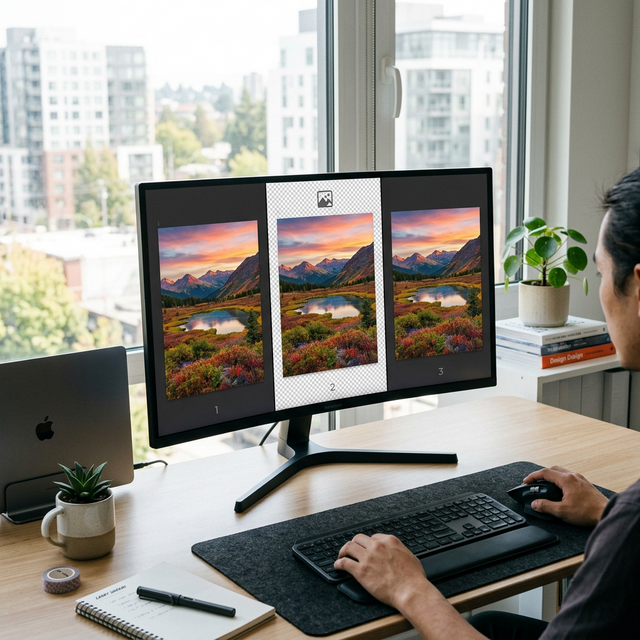
Every image on your website is stored in a specific format — JPEG, PNG, WebP, or one of several others. This format determines how the image compresses, how large the file becomes, whether it supports transparency, and how it renders across browsers. Choosing the wrong format can result in files three to ten times larger than necessary, slow page loads, blurry photographs, or transparent backgrounds that render as opaque white blocks. Despite the enormous impact format selection has on website performance and visual quality, many web developers and content creators give it little thought — defaulting to whatever format their camera or design tool outputs without considering whether a different format would serve their needs better. This guide provides a clear, practical comparison of the three most important web image formats — JPEG, PNG, and WebP — explaining when each format is the right choice, when it is the wrong choice, and how they compare in real-world performance metrics that directly affect user experience and search engine rankings.
Why Format Choice Is One of the Biggest Web Performance Decisions
Image format selection impacts performance more than most developers realize. The same photograph — 800 pixels wide, showing a landscape scene — weighs approximately 2.1 MB as an uncompressed PNG, 180 KB as a quality-80 JPEG, and 130 KB as a quality-80 WebP. That is a 16:1 size ratio between the worst and best format choice. On a page with five such images, the PNG version loads 10.5 MB of image data, while the WebP version loads only 650 KB. The difference between a fast, responsive page and a frustratingly slow one often comes down entirely to format selection.
Format choice also affects rendering quality in ways that are format-specific. JPEG introduces compression artifacts — blocky patterns visible around sharp edges, text, and high-contrast boundaries. PNG preserves pixel-perfect quality but at the cost of enormous file sizes for photographic content. WebP balances both concerns, achieving smaller files than JPEG while supporting both lossy and lossless modes. Understanding these trade-offs for your specific content type is the foundation of effective web image optimization.
Beyond individual file performance, format choice has ecosystem implications. Email clients, social media platforms, and content management systems handle different formats with varying degrees of support. A format that works perfectly on your website may fail when embedded in an email template or shared as an Open Graph image on social media. Making informed format decisions requires understanding both the technical properties of each format and the practical constraints of where your images will be displayed.
JPEG — The Universal Photograph Standard
JPEG (Joint Photographic Experts Group) has been the dominant format for photographs since the early 1990s. Its compression algorithm was specifically designed for photographic content — continuous-tone images with smooth color gradients and complex textures. Three decades of universal adoption mean that JPEG is supported by every browser, every email client, every operating system, and every image viewer ever created.
How JPEG compression works. JPEG divides the image into 8x8 pixel blocks and applies a mathematical transformation (Discrete Cosine Transform) that separates high-frequency details (sharp edges, fine textures) from low-frequency content (smooth gradients, broad color areas). The quality setting determines how aggressively high-frequency data is discarded. At quality 85, most high-frequency detail is preserved. At quality 50, significant detail is removed, producing visible artifacts.
Strengths. Universal compatibility — JPEG works everywhere without exception. Excellent compression for photographs — a quality-80 JPEG is typically 10-20 times smaller than the uncompressed original with minimal visible quality loss. Adjustable quality allows precise control over the size-quality trade-off. Widely understood by designers, developers, and content creators.
Weaknesses. No transparency support — JPEG does not support alpha channels, so transparent backgrounds render as white or another solid color. Poor handling of hard edges — text, logos, screenshots, and line art develop visible compression artifacts (blocking and ringing). Lossy only — every edit-and-save cycle compounds quality degradation. No animation support.
PNG — When Precision and Transparency Matter
PNG (Portable Network Graphics) was created as a patent-free replacement for GIF and has evolved into the standard format for images requiring exact color reproduction or transparency. PNG uses lossless compression, meaning the decompressed image is identical to the original — no data is discarded during compression.
Transparency. PNG supports full alpha channel transparency, allowing each pixel to have any level of opacity from fully transparent to fully opaque. This makes PNG essential for logos on colored backgrounds, overlay graphics, UI elements with rounded corners or shadows, and any image that needs to blend seamlessly with variable background content.
Color modes. PNG supports 24-bit color (16.7 million colors), 8-bit palette mode (256 colors), and grayscale. The 8-bit palette mode is particularly efficient for images with limited colors — icons, simple graphics, and diagrams — producing files significantly smaller than the 24-bit alternative while maintaining perfect quality.
Strengths. Lossless quality — no compression artifacts under any circumstances. Full transparency support. Excellent for screenshots, text, diagrams, logos, and any image with sharp edges and uniform color areas. No quality loss across multiple edits and saves.
Weaknesses. Large file sizes for photographs — a PNG photograph is typically 3-10 times larger than an equivalent-quality JPEG because lossless compression cannot achieve the same reduction ratios as lossy compression for complex photographic content. This makes PNG impractical as a default format for photography-heavy websites. For a portfolio site with 50 high-resolution photographs, using PNG instead of JPEG could increase total storage requirements from 50 MB to 250-500 MB, with proportional increases in page load times and bandwidth costs for every visitor.
WebP — The Modern Efficient Alternative
WebP is a format developed by Google, first released in 2010, that combines the strengths of both JPEG and PNG while improving on both. WebP supports lossy compression (like JPEG), lossless compression (like PNG), and transparency (like PNG) — all in a single format that produces smaller files than either predecessor.
Size advantage. Google's own testing demonstrates that WebP lossy images are 25-34 percent smaller than JPEG at equivalent visual quality, and WebP lossless images are 26 percent smaller than PNG. In practical terms, a 200 KB JPEG photograph becomes a 140 KB WebP — the same visual quality in a smaller package. Across an entire website, this reduction translates to measurably faster page loads and lower bandwidth costs.
Browser support. As of 2026, WebP is supported by over 97 percent of web browsers globally, including Chrome, Firefox, Safari, Edge, Opera, and all major mobile browsers. The remaining 3 percent consists primarily of legacy browser versions that receive minimal traffic. For new web projects, WebP can be used as the primary format with high confidence.
Strengths. Smaller files than both JPEG and PNG. Supports lossy and lossless modes. Full transparency support. Animation support (replacing animated GIFs at smaller file sizes). Excellent browser support in 2026.
Weaknesses. Not universally supported in email clients (Outlook for Windows, some corporate email systems). Limited support in some legacy content management systems. Some image editors do not support WebP natively, requiring plugins or conversion workflows. Slightly more computationally expensive to encode than JPEG.
💡 Key Insight
WebP is 25-34% smaller than JPEG at equivalent visual quality. This means a website serving 1 TB of JPEG images per month would save 250-340 GB of bandwidth by converting to WebP — reducing both hosting costs and page load times for every visitor. For new projects in 2026, WebP should be your default format unless specific compatibility requirements (email campaigns, legacy CMS integrations) require JPEG or PNG.
Side-by-Side Comparison
JPEG — Best for photographs and complex images. Compression: excellent (10-20x reduction). Transparency: none. Browser support: universal. File size for 800px photo: ~150-200 KB at quality 80. Best use: blog photos, product images, hero banners.
PNG — Best for graphics requiring precision. Compression: moderate (2-4x reduction). Transparency: full alpha channel. Browser support: universal. File size for 800px photo: ~1-3 MB. Best use: logos, icons, screenshots, diagrams, UI elements.
WebP — Best overall modern format. Compression: superior (25-34% smaller than JPEG). Transparency: full alpha channel. Browser support: 97%+. File size for 800px photo: ~100-140 KB at quality 80. Best use: any web image where browser support is confirmed.
Practical Decision Guide — Which Format for Which Situation?
Website photographs (blog posts, product pages, portfolios): Use WebP
as your primary format. For the 3% of browsers that do not support WebP, serve JPEG as a fallback using the
HTML <picture> element. This approach gives every visitor the smallest possible file
while maintaining universal compatibility.
Logos and icons: Use SVG for vector graphics whenever possible — SVG scales to any size without quality loss and produces tiny files. For raster logos, use WebP with lossless compression and transparency. Use PNG as a fallback or when SVG is not practical.
Screenshots and documentation images: Use PNG for maximum clarity of text and UI elements. If file size is a concern, convert to WebP lossless, which produces smaller files than PNG without any quality compromise.
Email newsletters: Use JPEG exclusively. Email client WebP support remains inconsistent across Outlook for Windows, Yahoo Mail, and corporate email gateways. JPEG guarantees that every recipient sees your images regardless of their email client.
Social media Open Graph images: Use JPEG or PNG. While most social platforms now accept WebP, some older sharing tools and crawlers may not process WebP correctly. JPEG provides the most reliable cross-platform preview rendering.
✅ Pro Tip
For email newsletters, stick with JPEG. WebP is not reliably supported across all email clients — Outlook for Windows, Yahoo Mail, and many corporate email systems may display broken image icons instead of your content. JPEG has been universally supported in email since the earliest HTML email clients, making it the only safe choice for email image content in 2026.
How to Convert Between Formats Online for Free
Converting between image formats does not require installing software. Several free browser-based tools handle format conversion instantly, processing your images client-side without uploading them to external servers.
Akhbarq Image Converter converts between JPEG, PNG, and WebP directly in your browser. Your images are processed locally using JavaScript, ensuring privacy and eliminating upload wait times. Simply select your source image, choose the target format, adjust quality settings if needed, and download the converted file.
Squoosh (by Google) provides real-time preview of format conversions with side-by-side comparison. You can see exactly how converting from JPEG to WebP affects both file size and visual quality before committing to the conversion. The tool supports all major web formats including the newer AVIF format.
CloudConvert handles batch conversions of multiple files simultaneously, supporting over 200 file formats. The free tier provides 25 conversions per day, sufficient for most individual workflows.
When converting between formats, always convert from the highest-quality source available — ideally the original uncompressed file or the original camera output. Converting from an already-compressed JPEG to WebP introduces a second generation of lossy compression, which compounds quality loss. If the only version available is a compressed JPEG, the additional quality loss from WebP conversion at quality 80+ is typically negligible, but it is best practice to work from original sources whenever possible.
The Future: AVIF and Emerging Formats
While JPEG, PNG, and WebP cover the vast majority of web image needs in 2026, the format landscape continues evolving. AVIF (AV1 Image File Format) is the most promising emerging format, based on the AV1 video codec developed by the Alliance for Open Media. AVIF achieves compression ratios 20-30 percent better than WebP — meaning even smaller files at the same visual quality.
As of 2026, AVIF is supported by approximately 93 percent of web browsers globally, including Chrome, Firefox, and Safari. The primary limitations are slower encoding speed (significantly more CPU-intensive than JPEG or WebP encoding), limited tooling support in image editors, and incomplete support in email clients and some content management systems. For progressive enhancement strategies — serving AVIF to supported browsers with WebP and JPEG fallbacks — AVIF is already worth adopting. As tooling matures and browser support increases, AVIF is likely to become the preferred web format within the next few years.
JPEG XL is another emerging format supported by fewer browsers but offering exceptional compression and features including progressive decoding, lossless JPEG recompression (reducing existing JPEG files by 20 percent without quality loss), and support for HDR imagery. While browser adoption remains limited, JPEG XL's ability to losslessly recompress existing JPEG archives makes it uniquely valuable for storage optimization even before full browser deployment.
Regardless of which formats emerge as dominant, the fundamental principles in this guide remain constant: match your format to your content type, compress aggressively within acceptable quality bounds, test in your target environments, and maintain original source files for format migration flexibility. Building your workflow around these principles ensures you can adopt new formats efficiently as they mature, without rebuilding your image optimization process from scratch.
Frequently Asked Questions
Q: Should I convert all my existing JPEG images to WebP?
A: For active websites where page speed matters, yes — converting existing JPEGs to WebP typically reduces total image bandwidth by 25-34%. However, keep the original JPEG files as backups and as fallbacks for browsers or email clients that do not support WebP. For archived content with minimal traffic, the conversion effort may not justify the marginal speed improvement.
Q: What about AVIF format?
A: AVIF is a newer format that achieves even better compression than WebP — typically 20-30% smaller files at equivalent quality. However, browser support as of 2026 is around 93%, encoding is significantly slower, and tooling support is less mature. AVIF is an excellent choice for progressive enhancement (serving AVIF to browsers that support it, with WebP/JPEG fallback), but it is not yet ready to be a sole format.
Q: Does format conversion affect image metadata?
A: Yes. Converting between formats may strip or modify EXIF metadata including camera settings, GPS coordinates, and creation dates. Some conversion tools preserve metadata, while others strip it by default. If metadata preservation is important (for photography archives), verify the conversion tool's metadata handling before batch-converting your library.
Q: Can I use WebP for print materials?
A: WebP is a web-optimized format and is not suitable for print production. Print workflows require TIFF, PSD, or high-quality JPEG in CMYK color mode. WebP uses RGB color space and is optimized for screen display. Always maintain source files in a print-appropriate format if your images serve both web and print purposes.
Q: How do I serve different formats to different browsers?
A: Use the HTML <picture> element to specify multiple image
sources. List WebP first (or AVIF), with JPEG as the final fallback. The browser automatically
selects the first supported format. Server-side content negotiation using the Accept header is an
alternative approach that works without modifying HTML.

Akhbarq Engineering
Lead Technical Architecture Team
Dedicated to building high-performance web utilities and sharing in-depth knowledge on digital optimization, security, and next-generation web platforms. We simplify complex technologies for millions of users globally.