How to Create a Favicon for Your Website — Complete Free Guide
Learn what a favicon is, how to design one effectively, how to convert PNG to ICO format free, and how to install it on any website.
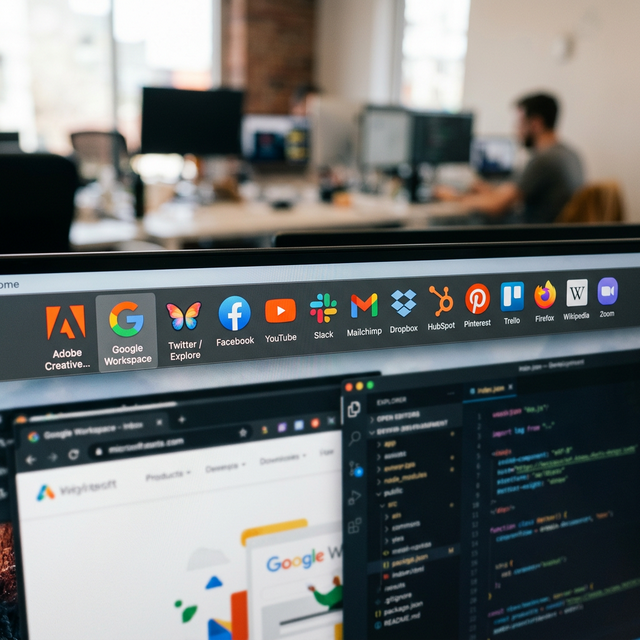
A favicon is the small icon that appears in browser tabs, bookmarks bars, and search results next to your website's name. Despite its tiny size — as small as 16x16 pixels — a favicon plays a disproportionately large role in brand recognition, user trust, and professional appearance. Websites without favicons display a generic browser icon (or worse, a broken image placeholder) that signals neglect and undermines credibility. Creating and installing a proper favicon is one of the simplest improvements you can make to establish your website as a professional, trustworthy presence on the web. This guide walks through the entire process: designing an effective favicon, converting it to the correct formats, and installing it on any website platform — using free tools only, with no design experience required.
What Is a Favicon and Where Does It Appear?
The term "favicon" is a contraction of "favorites icon" — it originally appeared only in browser bookmark lists (called "Favorites" in Internet Explorer). Today, favicons appear in at least six prominent locations across the web experience, making them one of the most frequently displayed elements of your brand identity.
Browser tabs. When visitors have multiple tabs open, your favicon is the primary visual identifier that helps them locate your tab among dozens of others. Without a favicon, your tab displays a generic icon that is indistinguishable from other faviconless sites. In a browser with 20+ tabs open (common for knowledge workers), the favicon becomes the only visible identifier — page titles are typically truncated beyond recognition.
Bookmarks and reading lists. When users bookmark your site, the favicon appears alongside the bookmark entry. A distinctive favicon makes your bookmark immediately recognizable in a list of hundreds of saved sites, increasing the likelihood that users return to your content.
Google Search results. Google displays favicons next to search results on both mobile and desktop. This small visual element provides brand recognition at the moment of search decision-making — a recognizable favicon can increase click-through rates by distinguishing your listing from competitors. A professional favicon signals a maintained, credible website; a missing favicon suggests a site that lacks attention to detail.
Mobile home screens. When users add your website to their mobile home screen ("Add to Home Screen"), the favicon serves as the app-like icon that represents your site. This usage requires a high-resolution favicon (180x180px for Apple, 512x512px for Android) because it displays at the same size as native app icons.
Why a Good Favicon Matters for Brand Recognition
Brand recognition operates through visual pattern matching — the ability to instantly identify a familiar symbol without conscious effort. Your favicon is seen more frequently than any other brand element because it appears in browser tabs throughout every browsing session. A visitor who spends 30 minutes reading your content sees your favicon continuously in their tab bar, building subconscious brand familiarity. This repetitive visual exposure builds recognition that transfers to other contexts — search results, social media links, and future encounters with your brand.
Consider the most recognizable favicons you encounter daily: Google's multicolored "G," YouTube's red play button, GitHub's octocat silhouette. These icons are instantly recognizable at 16x16 pixels because they are simple, distinctive, and consistently applied. Your favicon does not need to be as universally recognized as Google's, but it does need to be distinctive enough that your regular visitors can identify it among their open tabs and bookmarks.
From a trust perspective, a missing favicon creates a subtle but real credibility deficit. Studies on web credibility consistently show that users associate visual polish with trustworthiness. A website missing its favicon — displaying the browser's default globe or document icon — appears unfinished, abandoned, or amateur. For business websites, e-commerce sites, and professional portfolios, this perception can reduce conversion rates and undermine the trust necessary for transactions and engagement.
Favicon Technical Requirements — Sizes and Formats
Modern favicon implementation requires multiple sizes and formats to display correctly across all browsers, devices, and operating systems. While this sounds complex, the process reduces to creating one high-resolution source image and converting it to the required output formats.
ICO format (16x16, 32x32, 48x48). The traditional favicon format, supported by all browsers including legacy versions. An ICO file can contain multiple sizes in a single file. This format is required for maximum compatibility and should be named "favicon.ico" and placed in your website's root directory.
PNG format (32x32, 192x192). Modern browsers prefer PNG favicons
specified via <link> tags in your HTML head. PNG supports transparency and displays more
crisply than ICO at the same dimensions.
Apple Touch Icon (180x180). Required for iOS devices when users add
your site to their home screen. Named "apple-touch-icon.png" and referenced via a specific
<link> tag. Apple rounds the corners automatically — do not add rounded corners to
the source image.
Android/PWA Icon (192x192, 512x512). Android devices and Progressive Web Apps use high-resolution icons specified in a web app manifest file (manifest.json). The 512x512 size is used on splash screens and app drawers.
Design Principles for Effective Favicons
Simplicity is mandatory. Your favicon must be recognizable at 16x16 pixels — a grid of just 256 squares. Detailed logos, photographs, and text-heavy designs become unreadable blobs at this resolution. The most effective favicons use a single letter, a simple geometric shape, or an iconic symbol that remains clear at extreme small sizes.
Use your brand's primary color. Color is the strongest identification signal at small sizes. A distinctive color makes your favicon recognizable even before the viewer consciously processes its shape. If your brand uses a signature blue, make blue the dominant favicon color. Avoid using generic colors (plain white, generic gray) that fail to differentiate your icon from others.
Test at actual display size. Design your favicon at a high resolution (512x512), then immediately preview it at 16x16 and 32x32 to verify readability. Many designs that look excellent at 512px become indistinguishable mush at 16px. If you cannot identify the icon's shape and color at 16x16 without straining, simplify the design until you can.
✅ Pro Tip
Design your favicon to be recognizable at just 16x16 pixels. This constraint forces simplicity, which is the key to effective favicon design. Start with your brand's initial letter or a single iconic symbol in your primary brand color. If the design requires more than two visual elements, it is too complex for a favicon. Test by shrinking your design to 16px and viewing it on a tab bar — if you cannot instantly identify it, simplify further.
How to Convert PNG to ICO Using Akhbarq Image to Icon Tool
Akhbarq's Image to Icon converter processes your PNG source image entirely in your browser — no upload to external servers, no account required. The tool generates a multi-size ICO file containing 16x16, 32x32, and 48x48 pixel versions from a single source image.
Step 1: Prepare a square PNG image at 512x512 pixels (or larger) with your favicon design. Ensure the design is clean and recognizable when scaled down.
Step 2: Open the Akhbarq Image to Icon converter. Drag your PNG onto the upload area or click to browse.
Step 3: The tool generates the ICO file with all standard sizes embedded. Preview each size to verify readability.
Step 4: Download the generated favicon.ico file. Additionally, download the individual PNG exports at 32x32, 180x180, and 512x512 for modern browser and mobile implementations.
💡 Key Insight
Conversion happens entirely in your browser — your PNG image never leaves your device. Akhbarq uses the HTML5 Canvas API to resize your image to the required dimensions and package the results into a standard ICO file format. This client-side approach ensures your brand assets remain private and processing is instant regardless of your internet connection speed.
How to Install Your Favicon on Different Website Platforms
Standard HTML. Place your favicon.ico file in your website's root
directory and add the following tags to the <head> section of every page:
WordPress. Navigate to Appearance → Customize → Site Identity. Upload your favicon image in the "Site Icon" section. WordPress automatically generates all required sizes from your uploaded source image. This method requires no code editing and handles ICO, PNG, and Apple Touch Icon formats automatically.
Shopify. Go to Online Store → Themes → Customize → Theme Settings → Favicon. Upload a square PNG image at 512x512 pixels. Shopify processes it into all required formats automatically.
Squarespace. Navigate to Settings → Design → Logo & Title → Browser Icon. Upload your square PNG image. Squarespace generates the necessary sizes for browser tabs and bookmarks.
Testing Your Favicon — How to See It Immediately
Browser cache clearing. Browsers aggressively cache favicons, which means your new favicon may not appear immediately after installation. Clear your browser cache (Ctrl+Shift+Delete), close the tab, and reopen your website. Alternatively, open your site in a private/incognito window, which ignores cached data.
Multi-device testing. Test your favicon on desktop Chrome, Firefox, Safari, and Edge to verify consistent appearance. Test on iOS Safari and Android Chrome by adding your site to the home screen to verify touch icon display. Each platform renders favicons slightly differently — rounding, shadow effects, and background handling vary between operating systems.
Validation tools. RealFaviconChecker (realfavicongenerator.net/favicon_checker) tests your favicon implementation across all platforms and reports any missing formats or configuration issues. Running this check after installation confirms that your favicon displays correctly everywhere, catching issues before your visitors encounter them.
Google Search results. Your favicon in Google Search results updates when Google recrawls your site, which may take days or weeks. You can request a recrawl through Google Search Console to speed up the update. Once Google processes the recrawl, your favicon appears next to your listings in search results, enhancing brand visibility at the critical moment of search decision-making.
Dark Mode Favicon Considerations
With the widespread adoption of dark mode across operating systems and browsers in 2026, favicon visibility in dark environments has become an important design consideration. A favicon designed with dark colors on a transparent background may become invisible against dark browser chrome, while a favicon designed for light backgrounds may appear jarring on dark interfaces.
The transparent background challenge. Many favicons use transparent PNG backgrounds, which work well on light browser tabs where the favicon shape is clearly visible against the white or light gray background. In dark mode, the same transparent background can make the favicon blend into the dark tab bar, reducing or eliminating its visibility. Test your favicon in both light and dark modes to identify visibility issues.
Solutions for dark mode compatibility. The simplest approach is to add
a subtle light border or background shape that ensures visibility in both modes. A thin white outline (1-2
pixels at 32x32) around your icon shape provides contrast against dark backgrounds without significantly
altering the appearance on light backgrounds. Alternatively, use the CSS media query
prefers-color-scheme: dark in combination with separate favicon link tags to serve different
favicon versions for light and dark modes — though browser support for this technique varies.
SVG favicons offer the best dark mode support. SVG favicons can contain embedded CSS that responds to the user's color scheme preference directly within the icon file. This allows a single SVG favicon to adapt its colors automatically — displaying dark colors on light backgrounds and light colors on dark backgrounds. While browser support for SVG favicons has improved significantly, ICO and PNG fallbacks remain necessary for complete compatibility across all platforms.
Progressive Web App Manifest Configuration
If you want your website to behave like a native application when users add it to their mobile home screen, you need a web app manifest file that includes high-resolution icon specifications. The manifest.json file tells the browser how to present your website as an installed application, including which icons to use at different sizes and contexts.
Essential manifest icon sizes. Include icon entries for 192x192 (Android home screen) and 512x512 (splash screen and app drawer) at minimum. For comprehensive coverage, add 72x72, 96x96, 128x128, 144x144, 256x256, and 384x384 variants. Each entry specifies the file path, size, type, and purpose (maskable for adaptive icon support or any for standard display).
Maskable icons are designed with a "safe zone" — the essential design elements stay within the inner 80 percent of the icon area, allowing the operating system to crop the icon into circles, rounded squares, or other shapes based on the device manufacturer's design guidelines. Android devices specifically benefit from maskable icons, which prevent the awkward white padding that appears when a non-maskable icon is forced into a circular shape on modern Android launchers.
Testing your PWA icons. Chrome DevTools provides a manifest debugging panel (Application tab → Manifest) that displays your declared icons, their resolved sizes, and any configuration errors. The Maskable.app tool validates that your maskable icons have sufficient safe zone padding and previews how they will appear across different device shapes and masks. Running both verification steps ensures your website presents professionally when installed as a PWA across all Android and iOS devices.
Frequently Asked Questions
Q: What size should my favicon source image be?
A: Start with a 512x512 pixel square PNG image. This resolution is large enough to serve as the source for all required sizes (16x16 ICO through 512x512 PWA icon) without quality loss during scaling. Design at this size, then convert to smaller sizes using a tool like Akhbarq's Image to Icon converter.
Q: Can I use a photograph as a favicon?
A: Technically yes, but it is almost never effective. Photographs contain too much detail to remain recognizable at 16x16 pixels. The image becomes an indistinct blur at favicon sizes. Use a simplified symbol, letter, or geometric design that maintains clarity at extreme small sizes. If your brand requires photographic representation, extract the most distinctive visual element and stylize it as a simple icon.
Q: Do I need both ICO and PNG formats?
A: For maximum compatibility, yes. The ICO format ensures compatibility with legacy browsers and older versions of Internet Explorer. PNG favicons display more crisply in modern browsers. Providing both formats costs nothing in terms of page performance (only one is downloaded per visit) and guarantees correct display in every browser environment.
Q: How does a favicon affect SEO?
A: Favicons do not directly affect search rankings. However, they appear next to your site in Google Search results, which can influence click-through rates. A professional, recognizable favicon increases the likelihood that searchers click your listing over competitors, which indirectly benefits SEO through improved engagement signals.
Q: My favicon is not showing up — what should I check?
A: First, clear your browser cache and try an incognito window. If the favicon still does not appear, verify: (1) the file path in your HTML link tags is correct, (2) the favicon file actually exists at the specified path, (3) the file format is valid (open it in an image viewer to confirm). Use RealFaviconChecker to diagnose specific implementation issues. Browser favicon caching can be extremely aggressive — in some cases, clearing cache and restarting the browser is necessary.
Akhbarq Engineering
Lead Technical Architecture Team
Dedicated to building high-performance web utilities and sharing in-depth knowledge on digital optimization, security, and next-generation web platforms. We simplify complex technologies for millions of users globally.